CANtest User Guide
CANtest is ZLG's lightweight Windows utility for Classic CAN frame transmission, reception, and bus monitoring on devices such as USBCAN-II, USBCAN-2E-U, and USBCANFD-200U/400U.
Prerequisites
- Complete ZLG Windows driver installation for your active firmware mode.
- Connect the device to the PC and confirm in Windows Device Manager that it is detected without errors.
- Connect
CAN_HandCAN_Lproperly and verify 120 Ω termination at both ends of the bus.
Basic Workflow
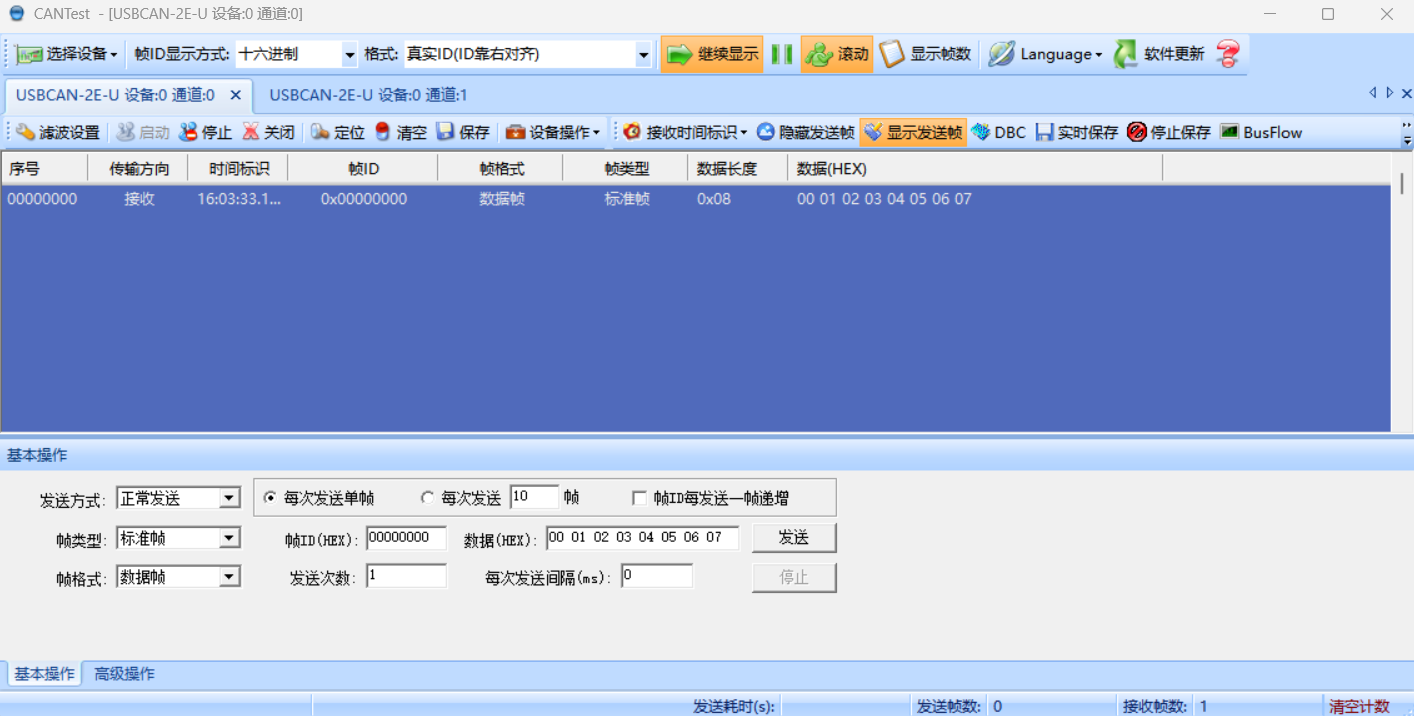
Screenshots below show CANtest in Chinese; you can switch the UI language from the Language button on the top toolbar.
Extract the downloaded archive and complete installation with the default options.
Launch CANtest, click Select Device (
选择设备) in the top-left toolbar, and pick the model matching your active firmware (for example,USBCAN2for USBCAN-II orUSBCAN-2E-U).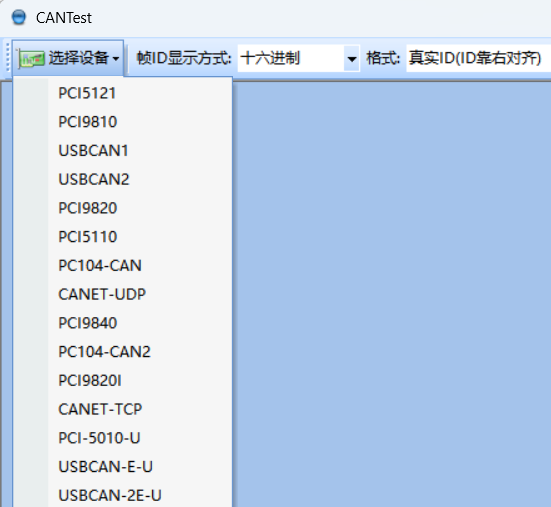
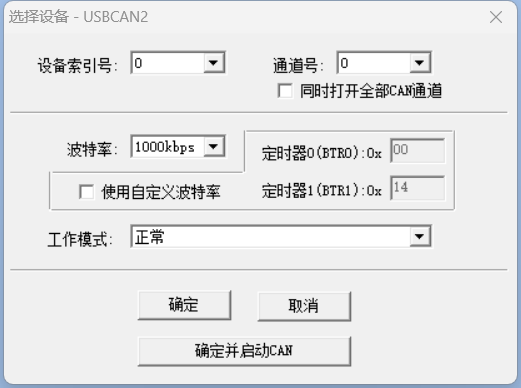
Configure and start the channel in the device setup dialog:
- Choose the Device Index (
设备索引号,0for the first adapter) and Channel Number (通道号). - Select the Bitrate (
波特率) matching your target CAN bus. - Select the Operating Mode (
工作模式, e.g.,Normal/正常). - Click OK and Start CAN (
确定并启动CAN).
- Choose the Device Index (
Inspect incoming frames in the upper message table and transmit test frames using the Basic Operations (
基本操作) panel at the bottom of the channel tab.