CanKing 7 User Guide
CanKing 7 is Kvaser's free general-purpose bus analysis utility for monitoring and transmitting frames over Kvaser CAN, CAN FD, LIN, and virtual channels. Use it with CANmeleon devices running Kvaser FD or Kvaser Leaf firmware.
Prerequisites
- Install the Kvaser Windows driver (or Kvaser Linux Drivers and SDK on Linux).
- Connect the CANmeleon device running Kvaser FD or Kvaser Leaf firmware and verify that the operating system detects the device.
- Wire
CAN_HandCAN_Laccording to your bus topology and verify that 120 Ω termination resistors are installed at both ends of the bus.
Download CanKing 7
Download the installer from the official Kvaser page:
Basic Workflow
Screenshots 1–5 below show CanKing 7 with its Chinese interface enabled; the corresponding English UI labels are noted alongside each step.
Launch CanKing 7 and create a new project or open an existing project.
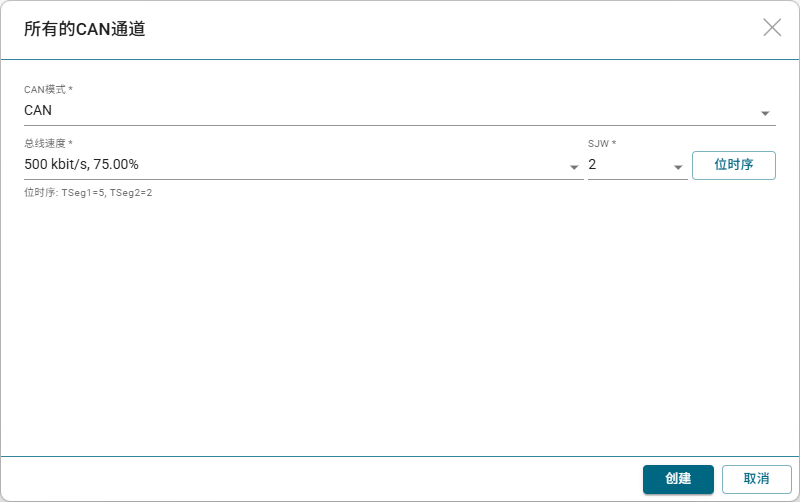
In the Measurement Setup view, click + Sources (
+ 源), select CAN Channel (CAN通道) or All Connected CAN Channels (所有连接的CAN通道), configure the CAN / CAN FD mode and bus bitrate to match your target network, and click Create (创建).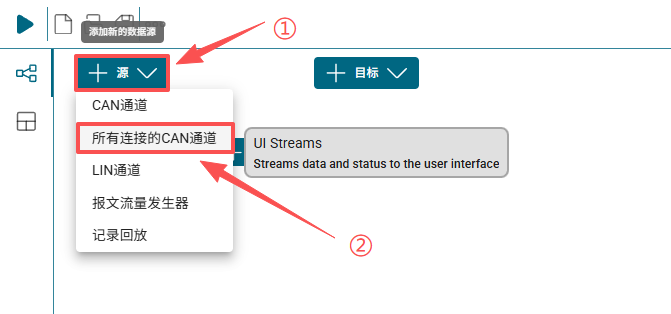
Click the Start button in the top-left toolbar to bring all configured channels online, or click the Bus On (
总线开启) connector icon inside an individual channel card.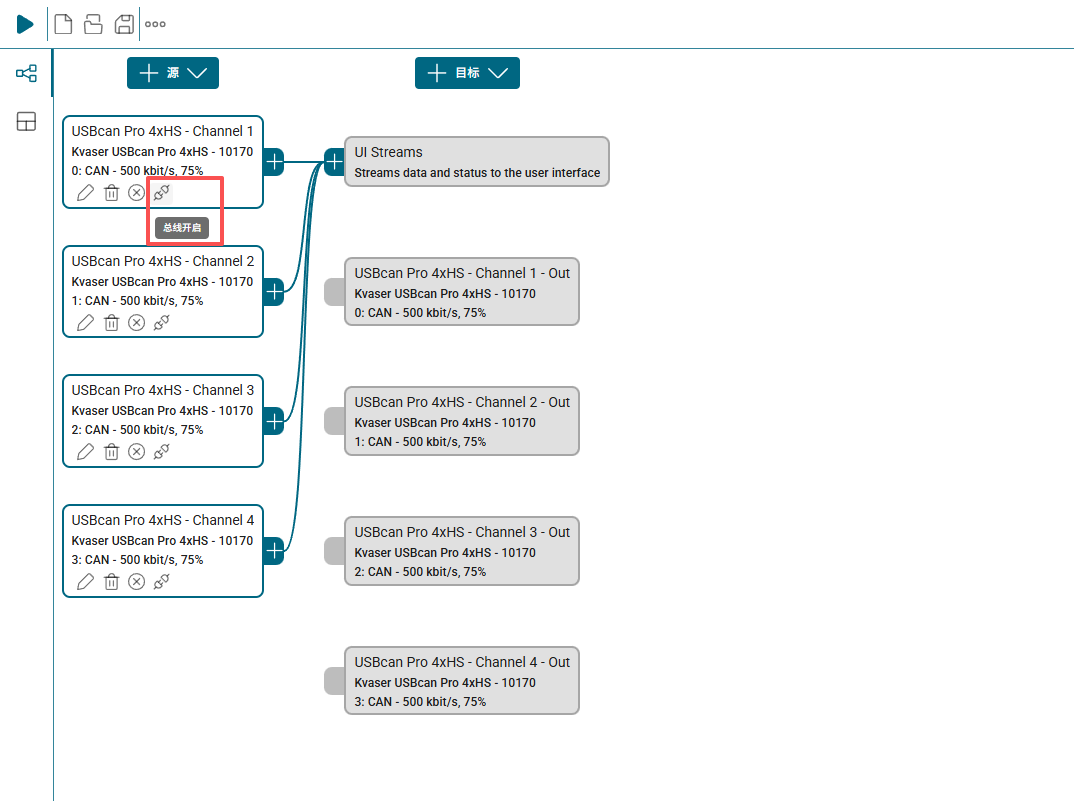
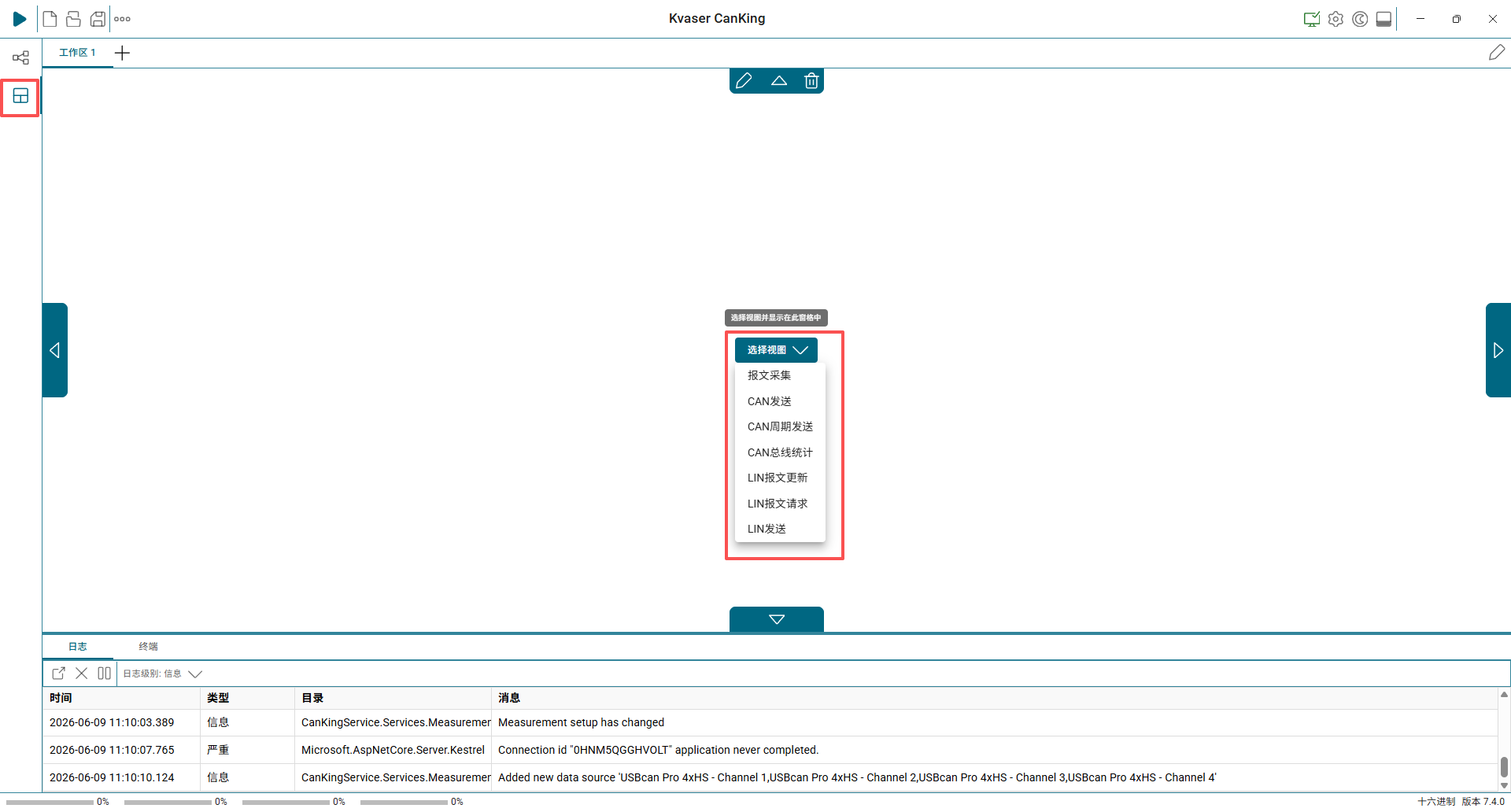
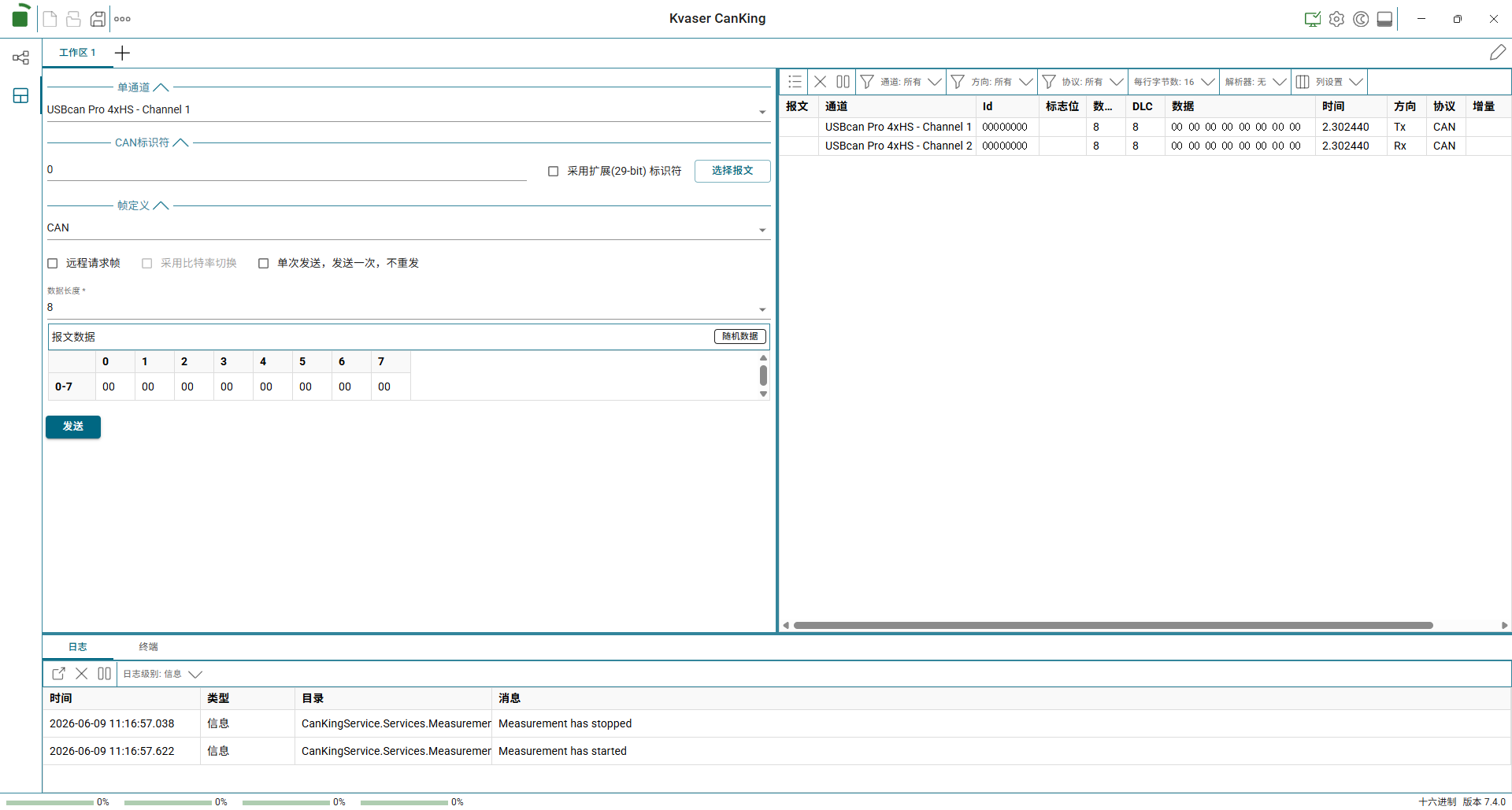
Switch to the Workspace tab on the left sidebar, click Select View (
选择视图), and arrange panels such as Message Trace (报文采集) and CAN Send (CAN发送) to transmit and inspect frames.