
CANoe Quick Start
Software Licensing
CANoe is commercial software from Vector Informatik GmbH. CANmeleon firmware does not include a CANoe license. Obtain CANoe and the required licenses through official Vector channels.
1. Prerequisites
- Switch the CANmeleon device to Vector VN16xx firmware (
VN1610orVN1640A, depending on your hardware and license). The screenshots below useVN1610as an example. - Complete Vector driver installation and confirm that the device appears without errors in Windows Device Manager.
- Download, install, and activate a licensed copy of CANoe from the Vector Download Center.
- Connect
CAN_H,CAN_L, andGNDproperly, and verify that 120 Ω termination resistors are present at both ends of the physical bus. - Confirm whether your target network uses Classic CAN or CAN FD, along with the exact arbitration-phase and data-phase bitrates.
2. Create a CANoe Configuration
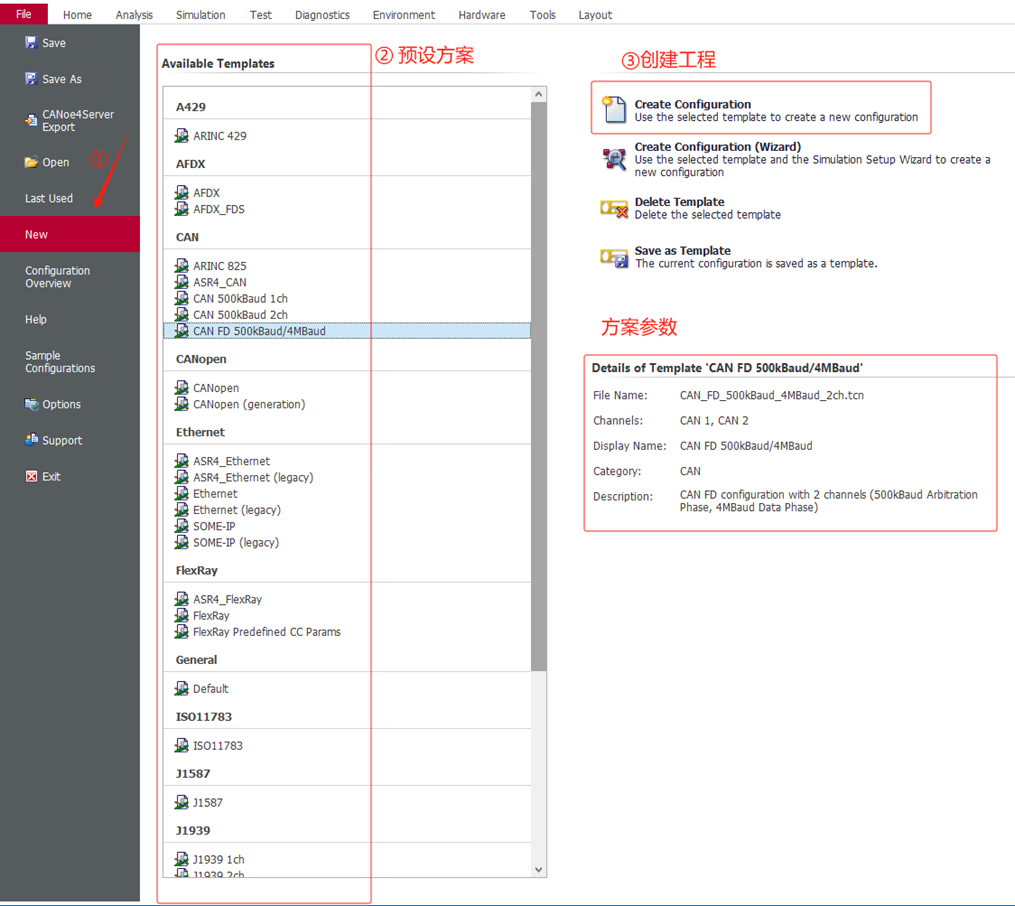
Launch CANoe, open File > New, select a template that matches your project's bus type, bitrate, and channel count, and click Create Configuration.
3. Map Physical Channels
Open
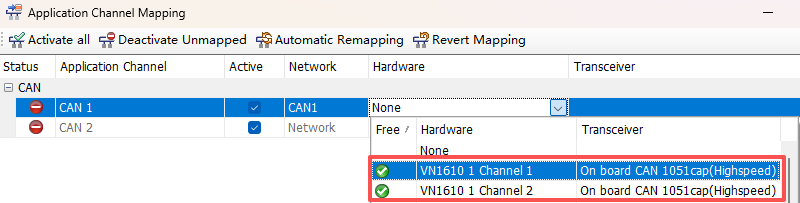
Hardware > Channel Mapping.
Under Application Channel Mapping, locate each logical channel used by the configuration, such as
CAN 1.In the Hardware column, select the corresponding physical channel on your connected device, such as
VN1610 1 Channel 1(or the matchingVN1640Achannel).Confirm that the channel state is Active, then click OK to save.
4. Configure CAN Bitrates
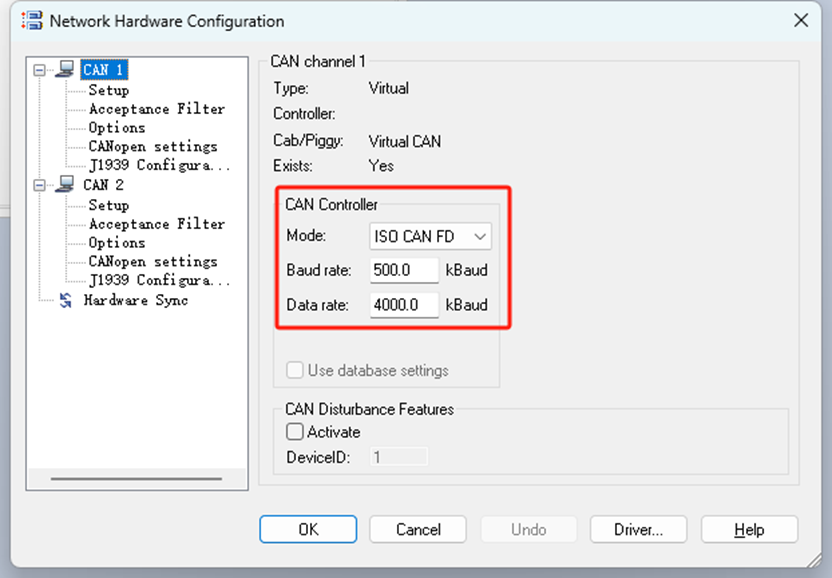
Open Hardware > Network Hardware, select the target CAN channel, and open Setup:
- Classic CAN: Select CAN mode and set the arbitration bitrate to match the physical bus.
- CAN FD: Select ISO CAN FD mode and configure both the arbitration-phase bitrate and the data-phase bitrate.
- Multi-channel configurations: Inspect every enabled channel individually so no active channel is left on default timing.
Match Bus Parameters Exactly
Mismatched CAN / CAN FD modes, bitrates, sample points, or prescalers commonly cause missing frames, error frames, or transitions into Error Passive or Bus-Off states.
5. Send and Inspect Frames
5.1 Configure the Interactive Generator
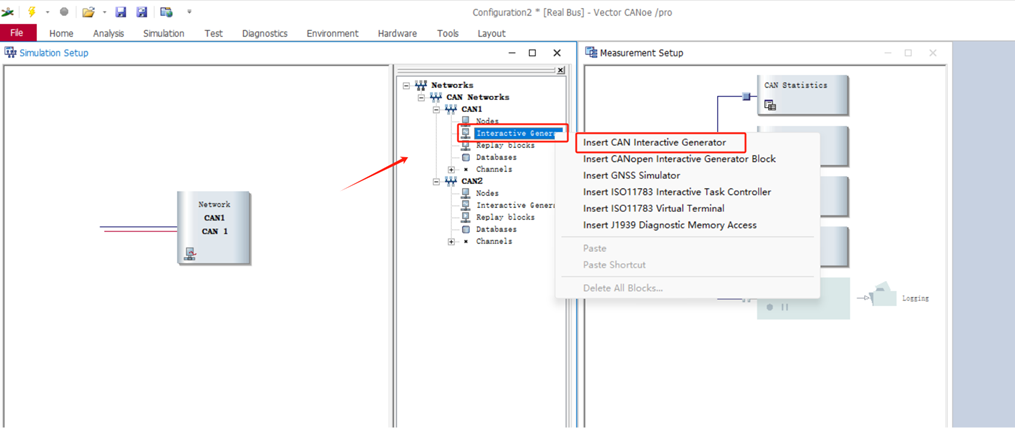
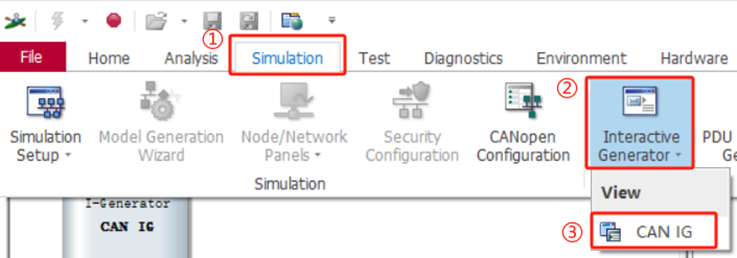
To transmit test frames manually, right-click the network or node branch in Simulation Setup and insert a CAN Interactive Generator.
Open the interactive transmit window via Simulation > Interactive Generator > CAN IG.
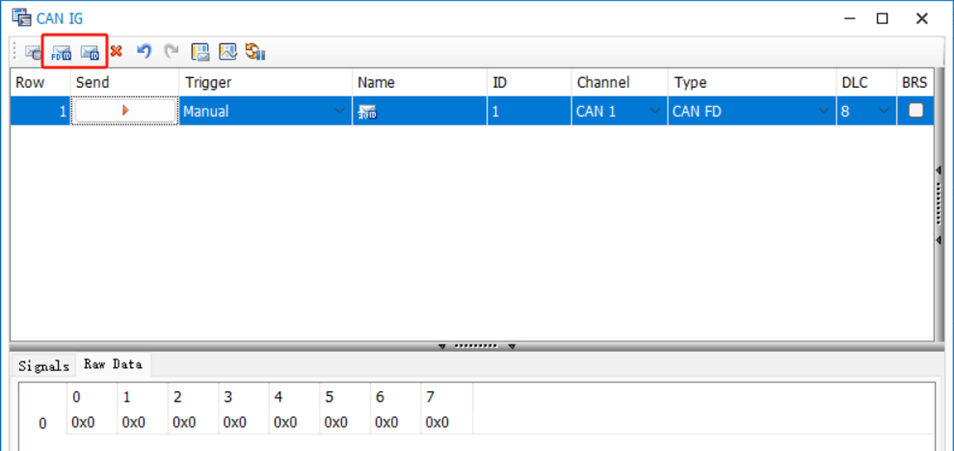
Add or edit a frame in CAN IG according to your test network:
ID: Frame identifier.Channel: Logical transmit channel, such asCAN 1.Type:CANorCAN FD.DLC: Data Length Code.BRS: Enable or disable Bit Rate Switch for the CAN FD data phase.Raw Data: Payload bytes to transmit.
5.2 Start Measurement and Transmit
- Connect the interface to the terminated CAN bus and recheck channel mapping and bit timing.
- Click Start Measurement (the lightning-bolt icon) on the CANoe toolbar.
- Click Send next to your test message in CAN IG.
- Check the device channel LEDs and the CANoe status bar to verify bus activity.
5.3 Verify Traffic in Trace
Open the Trace window from Analysis > Trace > Trace.
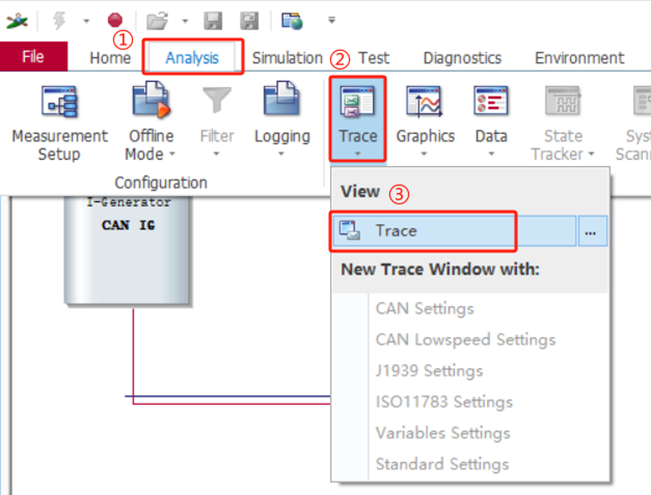
When communication succeeds, the Trace window displays timestamps, channels, directions (Tx/Rx), IDs, DLC values, and payload bytes. Verify that:
- Transmitted frames appear on the expected channel.
- Received frames match the expected IDs, cycle times, and payloads.
- No
ACK Error,Bit Error,Error Frame, orBus-Offevents occur. FDF,BRS, and payload length values match expectations for CAN FD frames.
6. Troubleshooting
Device Channel Does Not Appear in CANoe
Confirm in Windows Device Manager that the
VN1610orVN1640Adriver is loaded without errors.Reconnect the USB cable, restart CANoe, and reopen Channel Mapping.
Open Vector Hardware Config (or Vector Hardware Manager) and verify that the physical channel is assigned to the CANoe application channel.
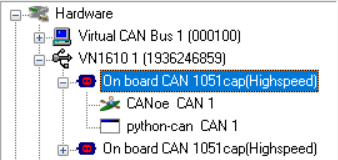
Close any other tool that may be holding exclusive control or conflicting bit-timing settings on the same channel, then retry.
No Frames Appear After Starting Measurement
- Verify that the logical channel in Channel Mapping points to the physical connector wired to your bus.
- Check
CAN_H,CAN_L,GND, and 120 Ω bus termination at both ends. - Confirm that the CAN / CAN FD mode, bitrates, sample points, and prescalers match all other nodes on the bus.